This post contains affiliate links. We may earn a commission when you download a freebie or buy a subscription on Creative Fabrica, at no extra cost to you.
The iPad was supposed to be for journaling. Three weeks in, every sticker you draw has the same smooth, even line, because it came out of the same default brush, and the flowers look like they were made by a very polite robot. The page is fine. It just does not look like yours.
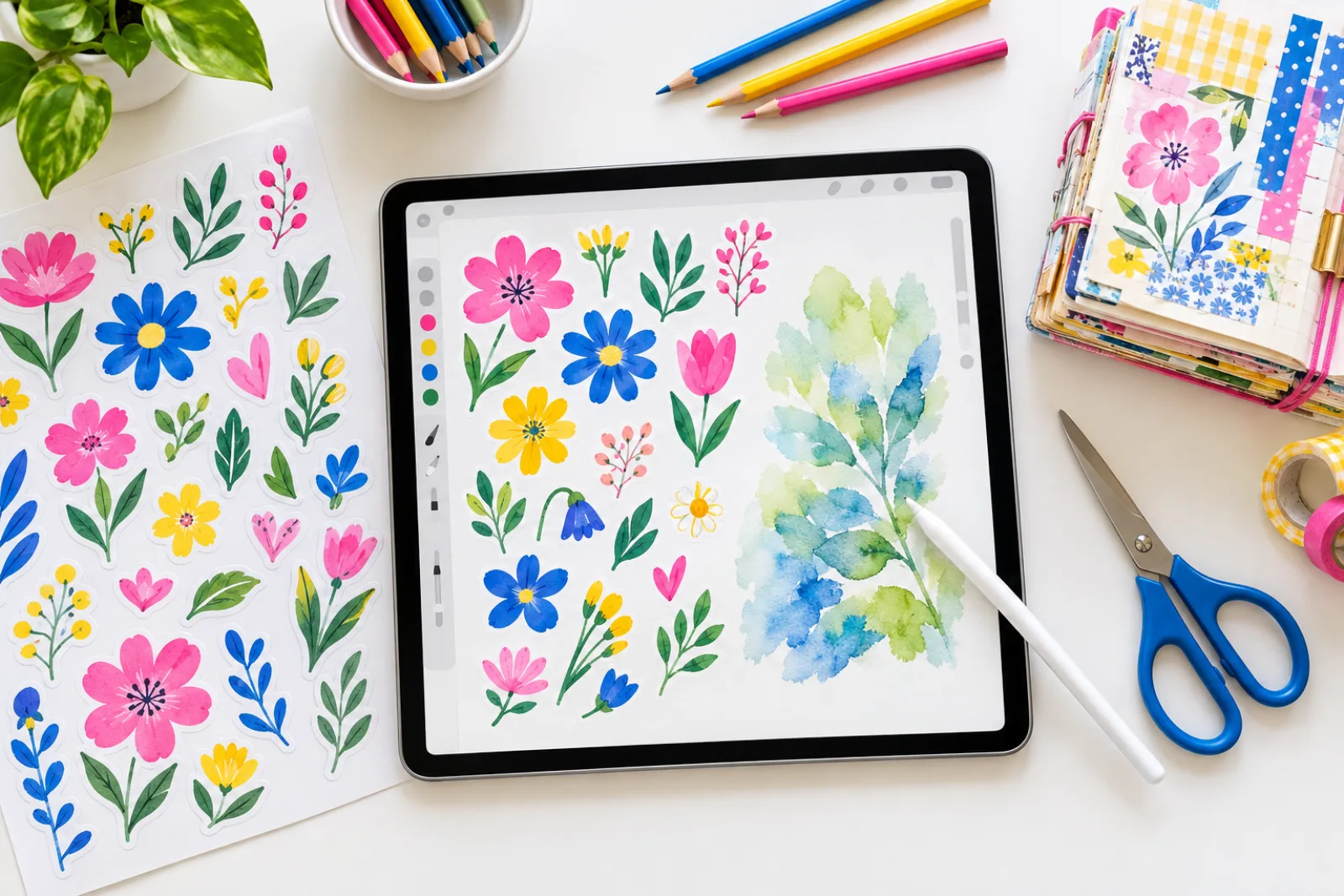
A new brush set changes that. A texture brush gives you pencil grain or a watercolor edge the default brushes do not have, and a stamp set gives you a whole sheet of matching flowers or bows in a few taps. Below are 18 sets grouped by project: stickers, journal pages, digital paper, painting. The five free ones come first.
The short version: A brush draws a stroke. A stamp drops a finished picture with one tap. Many sets arrive zipped, so unzip the download in the Files app, then tap the .brushset file and Procreate imports it. These sets are made for Procreate on the iPad; the iPhone app, Procreate Pocket, takes single .brush files, so read the listing before you buy for a phone.
Brushes make marks as you drag: a pencil that gets darker when you press harder, a watercolor wash that pools at the edge. They are the ones that feel different under the Apple Pencil, and most of them respond to pressure.
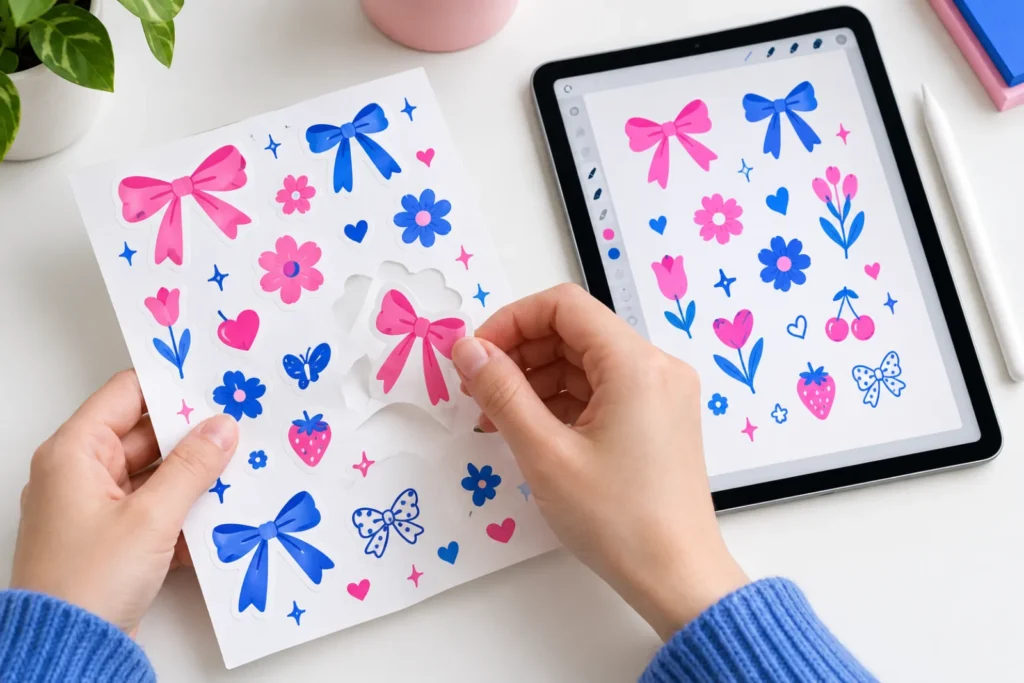
Stamps are pictures saved as brushes. You pick one, tap the canvas, and a whole bow or flower appears, sized by the brush size slider and filled with whatever color you have selected. Plenty of stamps ignore pressure entirely, which means a fingertip does the job and the Apple Pencil can stay in its drawer. For stickers and journal pages, stamps do most of the work.
Free Procreate brushes and stamps
All five were free on September 28, 2026, the day we checked. The free file sits behind the smaller “Download this product as a freebie” link; the large button on the same page is the sign-up for an All Access trial.
Start with the botanical stamps and the basic shapes together. A circle stamp in a pale color with a flower stamped on top is already a sticker. Add a thin white outline and it looks die-cut.
Which file you downloaded, and how to get it into Procreate
The file extension tells you what arrived:
File
What it is
Opens in
.brush
one brush
Procreate on iPad, Procreate Pocket
.brushset
a set of brushes in one file
Procreate on iPad
.brushlibrary
several sets at once
Procreate on iPad
.abr
Photoshop brushes
Procreate on iPad, Procreate Pocket
The Procreate Handbook gives two ways in. Tap the file in the Files app and a prompt offers to import it. Or open the brush library, tap the button in its top right corner, choose Import from Files and pick the file. A set lands at the top of your library; a single brush goes into a folder called Imported. The Pocket handbook lists .brush and .abr files for the iPhone app and says nothing about sets, so treat a set sold as one .brushset as an iPad purchase.
If nothing happens when you tap the file, look at the name first. A .zip has to be unzipped before Procreate can see what is inside. Other files in the download are not brushes: a color palette (.swatches) comes in through New from file on the Palettes tab of the color panel, a paper canvas (.procreate) through Import in the Procreate gallery, and PNGs are for other apps, like the Goodnotes PNGs that come with the diary stamps.
Watercolor and painting brushes
Watercolor is the brush type the default library handles worst, and the one that makes digital art look least digital. The watercolor set below ships with paper-texture canvases; use them. Paint on blank white instead and even a good wash sits there like a sticker on glass.
Paint loose florals on their own layers and you can export each one as a transparent PNG. That is clipart you made yourself, ready for cards, gift tags or a digital sticker book.
Pencil, pen and marker brushes
You will use these for sketching, for lettering a date header and for outlining a stamp after you color it in. Pick by the pen you already reach for on paper. A pencil brush is also the easy way to shade a coloring page on the iPad; our cozy coloring pages post shows how to fill one in Procreate first.
If lettering is the goal, pair a pen brush with a real font for the words you do not want to hand-draw. Our free Procreate fonts list covers the font install, which goes through the text tool rather than the brush library.
Stamps for stickers, planners and junk journals
One stamp set gives you dozens of drawings in the same line weight, so a page of stickers looks like it came from one shop instead of five.
To print them, lay the stamps out on a letter-size canvas at 300 DPI, leave a little space around each one, and export a PNG. Our sticker paper guide compares the sheets, including ones made for cutting machines. If the stickers are for a tablet instead, export the doodles as transparent PNGs and they drop onto the pages of a digital planner, and the bows go well with the curly lettering in our coquette fonts roundup.
Paper, binding and pattern brushes
Paper, lace and binding brushes are the odd ones in this list, and journal makers get the most out of them. They add the details that make a digital page look like an object you could pick up.
Print a lace-textured page on cardstock and it goes straight into a junk journal; our junk journal ephemera guide has more ideas for what to layer with it. For ready-made patterned sheets you do not have to paint, see our printable scrapbook paper roundup.
One big bundle
Big bundles look like a bargain and mostly fill your brush library with things you scroll past. This one earns its place only if you already sketch and paint a lot and want every medium in one folder. For stickers and journal pages, the smaller sets above will get more use.
Selling stickers made with these brushes
Selling what you draw is usually fine. Selling the brushes is not. Free downloads from Creative Fabrica fall under its Single Sales License, and files you get through All Access follow the subscription license. A few sellers here write their own limits into the listing as well: the lace set allows finished artwork for sale but not the brushes passed on as files. So a sticker you composed and colored is yours to list. A sheet that is nothing but the stamps, printed as they came, is a gray area. Read the product page before the Etsy listing goes up.
Frequently asked questions about Procreate brushes
How do I import brushes into Procreate?
Unzip the download in the Files app if it is a .zip, then tap the .brushset or .brush file and accept the prompt. The other route is Import from Files, under the button at the top right of the brush library.
Why won’t my Procreate brushes import?
Check the file extension. Procreate imports brushes from .brush, .brushset, .brushlibrary and Photoshop .abr files, and a .zip needs unzipping first. Anything else in the download is not a brush file.
Do Procreate brushes work on the iPhone?
Single .brush files do, in Procreate Pocket.
Can I use Procreate brushes in Photoshop?
No. Several sellers here say it outright: their sets are for Procreate only. It works the other way around, since Procreate can import Photoshop .abr brushes.
Do stamps need an Apple Pencil?
Usually not. A stamp that ignores pressure drops the same picture under a fingertip.
Goodbye, polite robot
The default brushes are fine for notes. For a page that looks like yours, start with the free botanical stamps and one brush you love the feel of, and let the robot flowers go.
Get free junk journal printables
New printables, page ideas, and paper craft tutorials, straight to your inbox.
16 Christmas machine embroidery designs, four free, for ornaments, names and sweatshirts, plus which file format your machine needs and which stabilizer to use.
17 cozy coloring page sets for adults, five free: bold and easy rooms, kitchens, cafés and animals, plus which file to open and how to color a page in Procreate.
Manage Consent
To provide the best experiences, we use technologies like cookies to store and/or access device information. Consenting to these technologies will allow us to process data such as browsing behavior or unique IDs on this site. Not consenting or withdrawing consent, may adversely affect certain features and functions.
Functional
Always active
The technical storage or access is strictly necessary for the legitimate purpose of enabling the use of a specific service explicitly requested by the subscriber or user, or for the sole purpose of carrying out the transmission of a communication over an electronic communications network.
Preferences
The technical storage or access is necessary for the legitimate purpose of storing preferences that are not requested by the subscriber or user.
Statistics
The technical storage or access that is used exclusively for statistical purposes.The technical storage or access that is used exclusively for anonymous statistical purposes. Without a subpoena, voluntary compliance on the part of your Internet Service Provider, or additional records from a third party, information stored or retrieved for this purpose alone cannot usually be used to identify you.
Marketing
The technical storage or access is required to create user profiles to send advertising, or to track the user on a website or across several websites for similar marketing purposes.