You bought the gorgeous digital planner, opened it in GoodNotes, and the layout is clean and the boxes are ruled and the whole thing looks like a spreadsheet wearing a nice font. Somewhere you have a folder of PNG sticker packs you downloaded one excited Sunday, and you cannot remember how to get a single one of them onto the page. So the planner stays bare and you go back to typing in Notes.
A digital sticker is just an image, almost always a PNG with a see-through background, that lives inside an app on your tablet instead of on a backing sheet. You place it with a tap, nudge it with your finger, and size it to whatever spot needs filling. The same little flower can sit in a hundred different spreads, and it never curls at the corner or lands crooked with no way back.
The reason they feel fiddly at first is that nobody tells you the actual steps. The stickers are not the hard part. The hard part is the two-minute routine of getting a PNG out of a folder and onto your page, and once that clicks, the packs you forgot you owned start earning their keep.
The short version: Digital stickers are transparent PNG files you add to apps like GoodNotes, Procreate, or Notability on a tablet. In GoodNotes you import them once into a sticker page, then lasso, copy, and paste where you want them. In Procreate you drag the file straight onto the canvas as a new layer. Look for high-resolution PNGs with a real transparent background, start with one functional set, and grab free packs to learn what you reach for before paying for anything.
A digital sticker is a small image made to sit on top of a digital page. The format that matters is PNG, because a PNG can carry a transparent background. That transparency is the whole game: it is what lets a flower or a date tab float over your page with no white box around it.
Save the same design as a JPG and you lose the transparency. The image arrives with a solid rectangle behind it, and your delicate little banner now looks like it was cut out by someone in a hurry. So the first thing to check on any sticker, free or paid, is that it is a PNG, not a JPG.
The other thing that separates a good sticker from a frustrating one is resolution. A low-res PNG looks fine small and turns to a blurry smear the second you scale it up to fill a header, so a pack that advertises high-res or 300 DPI is the safer pick over one that stays quiet about it.
That is the one technical thing worth knowing. Transparent PNG, decent resolution, and the rest is just where you put them.
What you need to use digital stickers
Less than you think. The kit is short:
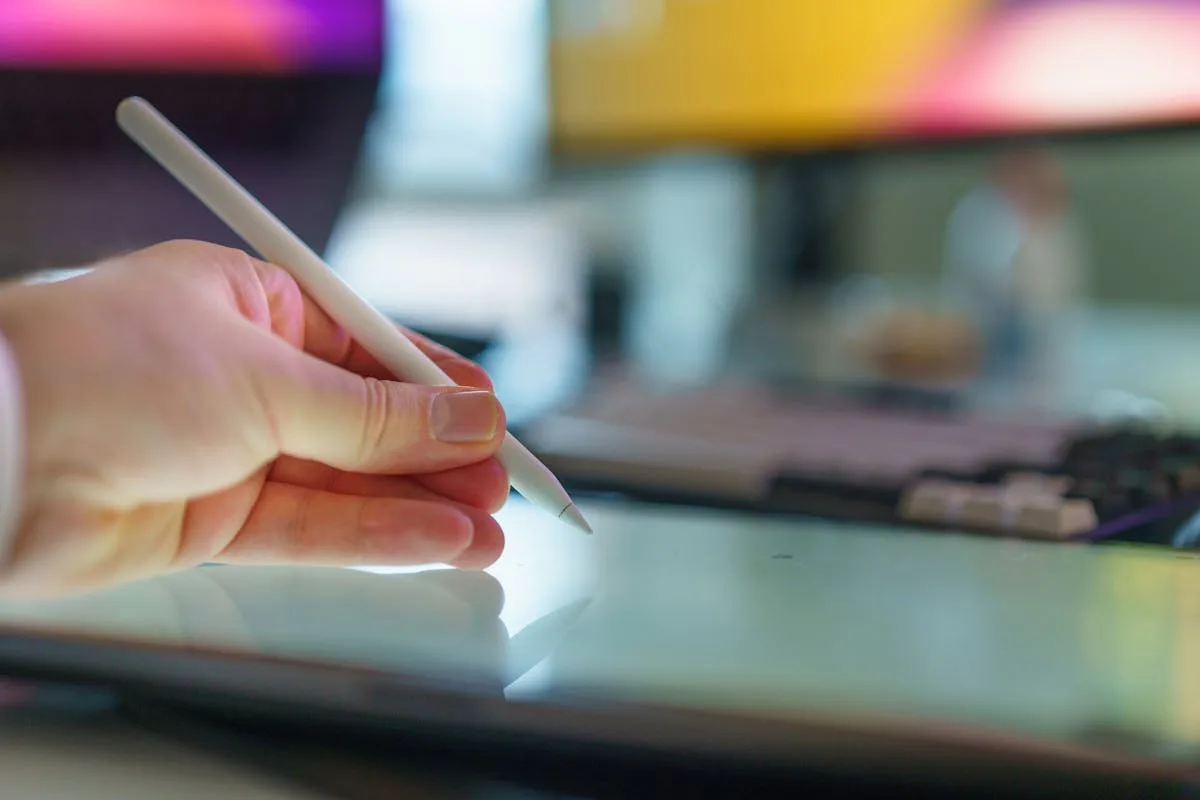
A tablet and a stylus. An iPad with an Apple Pencil is the common setup, but an Android tablet with a pen works too. You can use a finger in a pinch, it is just less precise.
An app that lets you insert images. GoodNotes, Notability, Procreate, Noteshelf, Xodo. Each one handles stickers a little differently, and we walk through the two most common below.
A set of stickers. PNG files, organized somewhere you can find them. A folder in Files, an album in Photos, or a dedicated sticker book page inside your app.
No printer, no scissors, no sticker paper, no drying time. That is the trade you make for the screen: everything is faster and reusable, and none of it exists once you close the lid. If you want stickers you can hold, the paper side of this lives in our guide to the best printable sticker paper, which is a different setup entirely.
How to add digital stickers in GoodNotes
GoodNotes is where most people meet digital stickers, and the workflow trips up everyone exactly once. Here is the version that sticks.
The fastest reliable method is the sticker-book approach. Make one notebook (or a single page) that holds all your stickers, imported as images. Then you copy from that page and paste into whatever spread you are working on.
Import the PNGs. Open your sticker page, tap the image or photo tool, and add the PNG files. They land on the page as movable images.
Lasso what you want. Switch to the lasso tool, draw a loop around a single sticker, and lift your pen.
Copy and paste. Tap inside the loop, choose copy, flip to your real page, and paste. The sticker drops in, still selected.
Place and resize. Drag it where it goes and pinch to size it. Because it is a transparent PNG, it sits cleanly over your background with no white box.
Once you have done it twice it takes about five seconds. The newer versions of GoodNotes also have a built-in elements or sticker panel you can pin to the side, which skips the copy-paste loop, so check which version you are on before you set up the long way round.
How to add digital stickers in Procreate
Procreate treats a sticker as what it really is, a layer, which makes it the most flexible app of the bunch and the most foreign if you came from planning rather than drawing.
The simplest route is drag and drop. Open your spread in Procreate, open Files or Photos beside it in Split View, and drag the PNG straight onto the canvas. It arrives as its own layer, already transparent, ready to move and scale with the transform tool.
Because each sticker is a separate layer, you get tricks the planner apps cannot match. You can drop the opacity so a sticker reads as a faded background wash. You can clip a texture to it. You can duplicate a layer to repeat a motif down a border in seconds. The cost of all that power is housekeeping: a heavily decorated page can stack up a lot of layers, so flatten groups you are done editing to keep things manageable.
If you mostly want quick, functional decoration, a planner app is simpler. If you like to actually compose a page and play with blending, Procreate rewards the extra steps.
Functional and decorative, same as paper
Digital does not change what a sticker is for. The split that organizes the whole craft still holds: functional stickers carry information (dates, headers, checkboxes, habit icons), and decorative stickers carry mood (florals, frames, washi-style strips, little characters). A page that works usually leans on a few functional pieces with a touch of decoration on top.
The full breakdown of types and jobs lives in our journal stickers guide, and it applies whether your page is paper or pixels. The only digital wrinkle is that you never run out, which is exactly why digital pages tip into clutter faster. Infinite stickers is a temptation, not a feature.
Where to get digital stickers, including free
Three honest routes, same as with paper, and the right one depends on whether you want to start tonight or build a library.
Buy ready-made packs. Independent makers sell themed PNG sets, often huge bundles for the price of a coffee. Good once you know your style. The catch is the digital version of the paper trap: it is easy to hoard packs you never open, because they cost almost nothing and take no shelf space.
Make your own. If you draw, Procreate turns any sketch into a sticker. Draw on a transparent layer, export as a PNG, and you have a sticker only you own. This is the slow, satisfying route for people who want their pages to look like nobody else’s.
Free packs. The smartest place to start. Before you pay for a single bundle, download a free set, spend a week using it, and find out which stickers you actually reach for. Creative Fabrica has a deep library of digital PNG sticker designs you can download free, which is a low-stakes way to test a style and a workflow at the same time. A dedicated free roundup is coming, and in the meantime our free junk journal printables collection has sheets that scan and import cleanly too.
How to use digital stickers without the sticker-bomb look
Because you cannot run out, the digital page is where restraint matters most. The rules that keep a screen from looking like a sticker album:
Size with intent. Scale each sticker to its job before you place the next one. A header sticker and a tiny corner icon are different sizes, and a page where everything is the same scale reads as noise.
Use opacity. Drop a busy background sticker to a low opacity so your writing stays the star. This is the move paper cannot do, so use it.
Snap to a grid in your head. Line stickers up to the edges of your boxes and margins. Digital makes everything draggable, which means everything is also easy to leave slightly crooked.
Duplicate, do not redraw. If you want a repeating border, place one sticker, then copy it along the edge so the spacing stays even.
Lean on undo. Endless stickers make a page easy to overfill, so when a spread starts to feel busy, take the last one back off and leave it off.
A clean digital spread usually has a dated header, one or two functional icons doing real work, and a single decorative piece in the white space. Three or four placements, not a confetti cannon. The temptation is always to add one more, and the spread is almost always better when you do not.
Frequently asked questions about digital stickers
What format are digital stickers?
Almost always PNG, because a PNG can have a transparent background, which is what lets a sticker sit on your page without a white box around it. If a sticker comes as a JPG, it will have a solid rectangle behind it. Check for PNG before you download.
How do I use digital stickers in GoodNotes?
Import the PNGs onto a dedicated sticker page, then use the lasso tool to loop a sticker, copy it, flip to your spread, and paste. Drag it into place and pinch to resize. Newer GoodNotes versions also have a built-in sticker or elements panel that skips the copy step.
Can I use the same digital stickers more than once?
Yes, and that is the main appeal. A digital sticker is a file, so you can paste it as many times as you like across as many pages as you like, resize it differently each time, and never run out. Paper stickers are gone once you peel them.
Are digital and printable stickers the same thing?
No. Digital stickers are PNG files you place inside an app on a tablet and never print. Printable stickers are designs you print onto sticker paper and stick on real pages. Some shops sell both versions of a design, so check which file you are buying.
Where can I get free digital stickers?
Free PNG sticker packs are the easiest way to start. Sites with large free libraries, Creative Fabrica among them, let you grab digital sticker designs at no cost, so you can judge a set by using it rather than by the preview thumbnail. Drop the files into your app and they are ready to place.
Import one pack and decorate one page
You do not need fifty bundles to make a digital page look good. Open that planner you abandoned, pull in one free sticker pack, and decorate a single spread: a dated header, one functional icon, one flower in the corner, and stop. Five minutes, no printer, nothing to peel.
When you want the bigger picture, the journal stickers guide covers every sticker type and job, and if you decide you want a physical version after all, the printable vinyl sticker paper walkthrough takes you the other way. The pack you forgot you owned is sitting right there in your files. Pull one in and fix that empty spread.
Want a free sticker starter pack? Our printable kit includes journaling stickers, tags, and labels you can use on paper or scan straight into your tablet. Sign up below and we will send it over.
Get free junk journal printables
New printables, page ideas, and paper craft tutorials, straight to your inbox.
Paper stickers are perfect right up until the moment one gets touched, splashed, or stuck to anything that moves. Then the edges fuzz, the ink lifts, and the cute label you printed for a water bottle looks like it went through the wash. That is the exact gap printable vinyl fills, and it is also…
You set up a clean weekly spread, ruled the boxes, wrote your headers, and then stalled. It is correct and it is boring, and you know one strip of washi along the top and a couple of small stickers would fix it, but you do not want to wreck twenty minutes of work with the…
Printable sticker charts that actually work: how to set up reward charts for kids and habit trackers for you, plus where to download free templates.
Manage Consent
To provide the best experiences, we use technologies like cookies to store and/or access device information. Consenting to these technologies will allow us to process data such as browsing behavior or unique IDs on this site. Not consenting or withdrawing consent, may adversely affect certain features and functions.
Functional
Always active
The technical storage or access is strictly necessary for the legitimate purpose of enabling the use of a specific service explicitly requested by the subscriber or user, or for the sole purpose of carrying out the transmission of a communication over an electronic communications network.
Preferences
The technical storage or access is necessary for the legitimate purpose of storing preferences that are not requested by the subscriber or user.
Statistics
The technical storage or access that is used exclusively for statistical purposes.The technical storage or access that is used exclusively for anonymous statistical purposes. Without a subpoena, voluntary compliance on the part of your Internet Service Provider, or additional records from a third party, information stored or retrieved for this purpose alone cannot usually be used to identify you.
Marketing
The technical storage or access is required to create user profiles to send advertising, or to track the user on a website or across several websites for similar marketing purposes.